
A week is hidden or visible
Every week of a season is either hidden or visible to the athlete. While a week is hidden, the athlete sees nothing in it, and every workout in it is a draft. Publish the week and its workouts appear in their Wyder app.
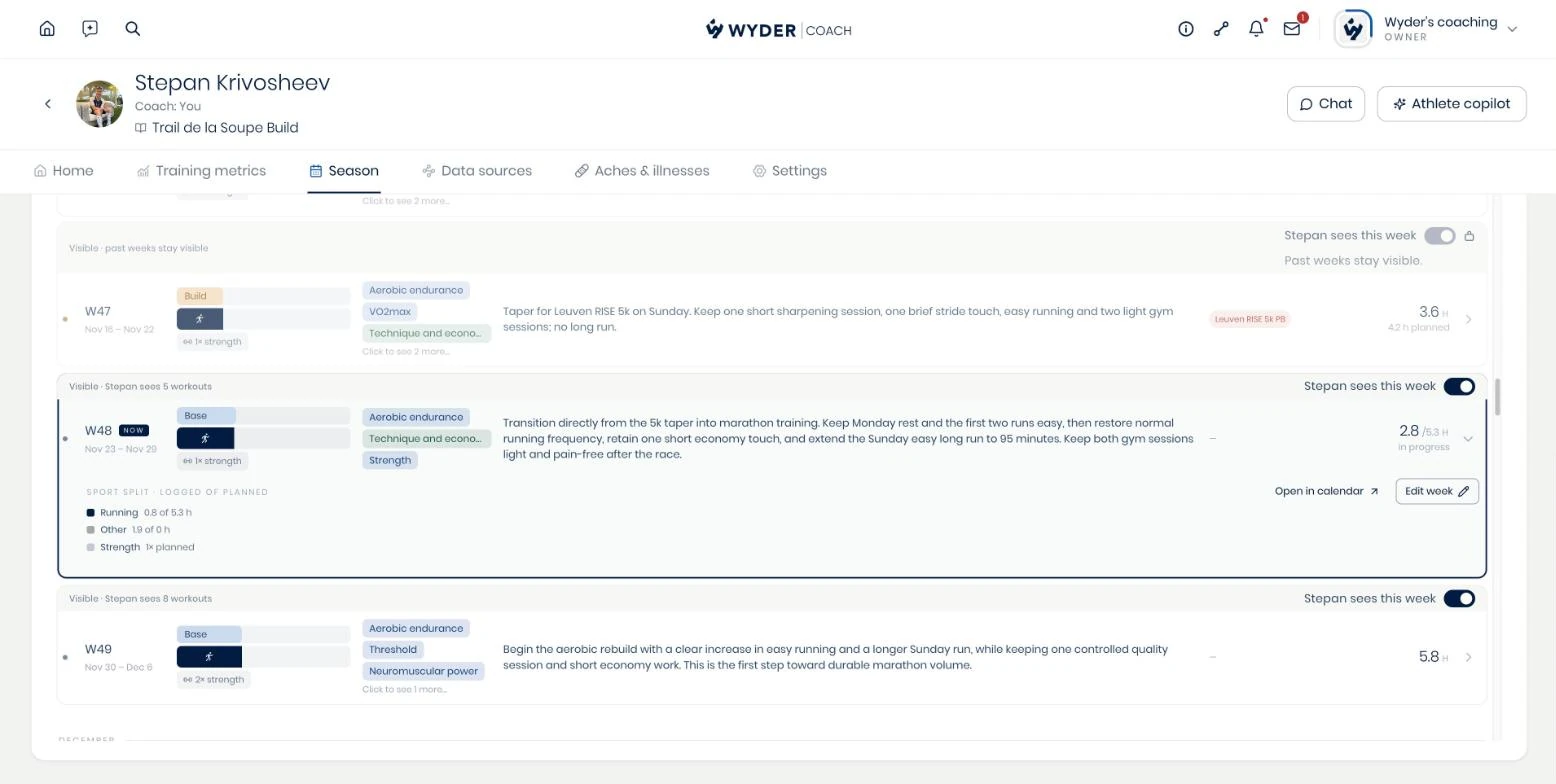
The switch sits on the week itself, labelled with the athlete's name: [Name] sees this week. You find it at the end of each week row in the monthly calendar under the athlete's Home tab, and on each week in the week-by-week list of their Season tab.
After you publish, a notice confirms the week is now visible and offers Undo.
Hiding a week again
Switch a visible week off and Wyder asks you to confirm, because the athlete already sees those workouts. They turn back into drafts and leave the athlete's app and watch until you publish the week again.
Weeks in the past stay visible.
A draft workout inside a visible week
A workout can also be a draft on its own. When you save a workout from the builder, choose between Save as draft and Save and publish. A draft in a visible week stays with you until you publish it, while the rest of that week is already with the athlete.
A single workout cannot be published into a hidden week. Wyder tells you the week is hidden and offers to publish the whole week instead.
Moving a published workout into a hidden week turns it into a draft too. A notice tells you so, with Undo next to it.
Reviewing drafts in bulk
When there are drafts on an athlete's calendar, a Review button with the number of drafts appears above it. In review mode you select drafts one by one or week by week, then Publish the selection, Publish all, or Discard what you do not want.
The Season tab offers the same for whole weeks. Select draft weeks in the week-by-week list, by week or by month, and show them to the athlete in one go. Discard workouts removes the sessions in the selected weeks, with the option to also empty the weeks themselves. Races and sessions the athlete already did are always kept.
Your co-pilot's work follows the same rule: what it drafts is saved as drafts, and nothing goes out until you publish it.
An athlete who has not accepted your invite yet cannot see any week. You can plan and set everything up in the meantime, and switch weeks on once they have joined.
Looking for why one specific workout is not showing up? See Why can't my athlete see this workout?.