
Building a plan by hand
Plans are built for one athlete at a time, so every phase and workout that follows actually builds toward something concrete. Start one from an athlete's Season tab by clicking Create training plan, or from anywhere you see a No active plan prompt: their page header, or their row in Workspace (profile icon in the top right) -> Athletes.
Every plan starts with a goal, and there are three kinds to choose from: a specific race or event, a standalone performance target with no event attached, or ongoing development for an athlete with nothing specific on the calendar right now.
Pick whichever actually matches why this athlete is training. An event-based plan builds toward a race; a performance goal builds toward a number; ongoing development just keeps going, built around a repeating block rather than counting down to a date.
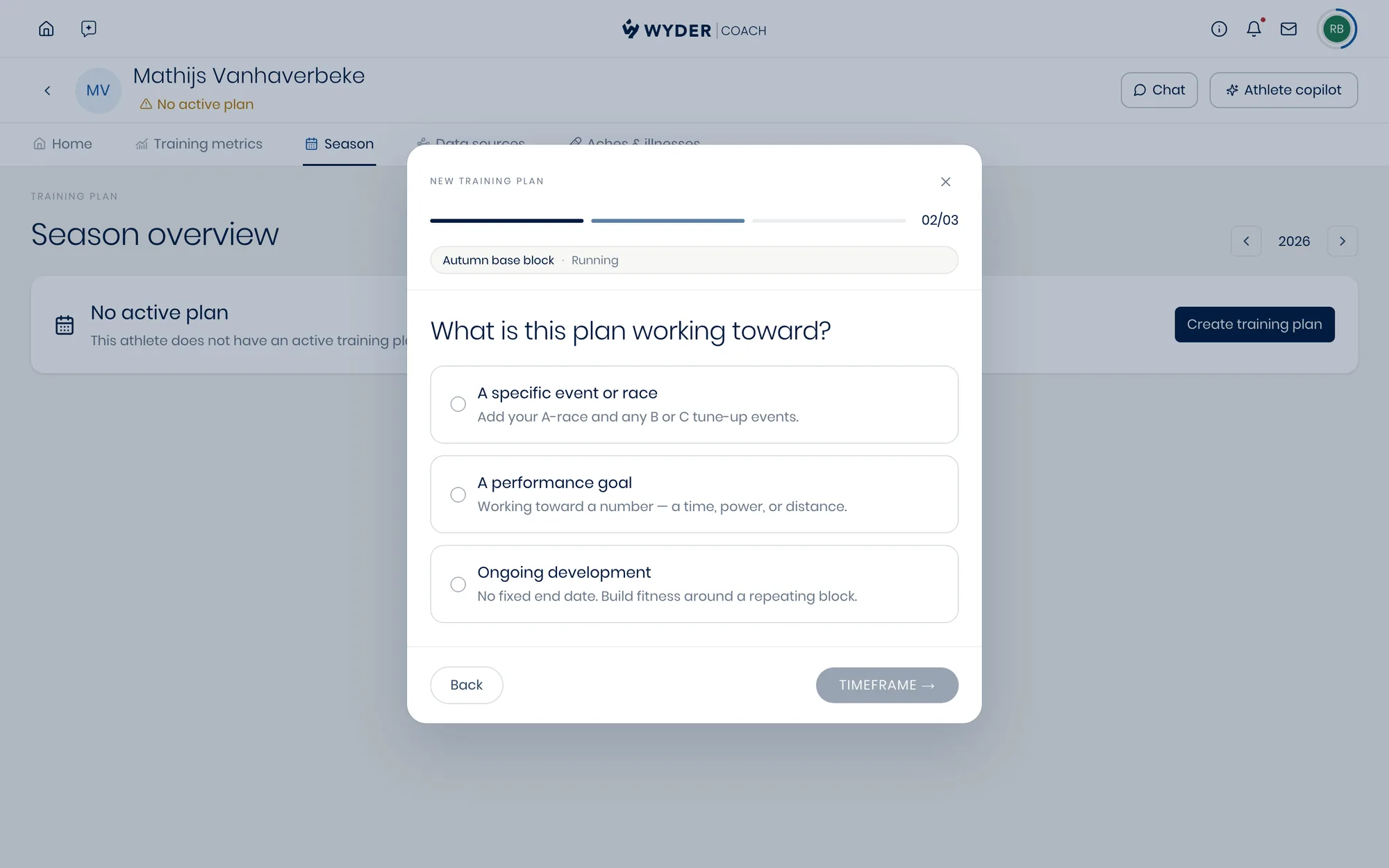
You can add multiple races or events to an event-based plan if desired, each with different specifics and priorities (see Adding races and goal events).
After this, you can start manually building the training plan. From the Season tab of the relevant athlete profile, click any week to set its phase, its target load per sport, the adaptations it should train, and a note for your co-pilot, all from the same panel. Repeating the week before takes a single click, so building a block doesn't mean retyping every week.
See Planning a week to learn what each week's property does, and Reading the season view for reading the season around it.
Workouts can manually be assigned to this plan via the athlete's monthly calendar view under the Home tab or through your Workout Library, as described in Building workouts.
Building a plan with your co-pilot
Instead of stepping through the wizard and scheduling all workouts yourself, you can speed up the process by describing what you need to your personal AI co-pilot and letting it draft the plan for you.
It works top-down: first, it drafts an entire annual plan, laying out phases and volume across the whole season toward the athlete's goal, whether that's a single race, a string of races, a standalone performance target, or ongoing training with no fixed event.
From there, it only generates the detailed, day-by-day workouts four weeks ahead to start, then keeps generating two weeks ahead on a rolling basis as the plan progresses, rather than filling in an entire year of sessions up front.
If you'd rather see further ahead, just ask it to generate more weeks in advance. See Building workouts with AI for the same approach applied to a single workout.
Reviewing drafts
Whether you built it by hand or asked your co-pilot to draft it, every new plan starts life as a draft, and nothing in it reaches the athlete until you explicitly activate it, giving you room to build and refine it for however long you need. Once active, a plan can later be paused, completed, or abandoned too.
A single workout can also be its own draft, independent of the plan around it: any session you add or edit after the plan is already active starts as a draft again, and needs its own activation before the athlete sees it. See Why can't my athlete see this workout or plan? for the full picture of how plan-level and workout-level drafts differ.
Adjusting a draft, or any active plan, is just as easy: change a single week directly from the athlete's Season tab (see Planning a week), adjust any workout as desired from the Home tab, or simply ask your co-pilot for any desired change.
If you'd rather rework an active plan away from the athlete for a while, Back to draft in the Season tab header pulls it back out of their hands until you activate it again. Delete plan, next to it, removes the plan and everything it scheduled, so reach for the draft first unless you really are starting over.
Drafted workouts also show up flagged on your athlete's monthly calendar, where you can select several at once and publish, discard, or clear them as a batch rather than opening each one individually.