
Who needs a look today
This is the view that welcomes you every time you open Wyder: every athlete you coach, in one table, with a column for what actually needs a decision from you.
The Status column marks each athlete follow up, adjust plan, plan ahead, or on track, rolling up signals across their health, training compliance, and how much plan they still have scheduled ahead into one clear priority. The counts along the top right show how the whole roster splits between the four.
The rest of the row tells you why. Alerts carries that athlete's unread alerts by urgency, and clicking one opens them (see Alerts), Runway shows how many weeks of the plan are still scheduled ahead, so you can see who's about to run dry, and Recap carries the daily recap your co-pilot writes for that athlete, right there in the row (see Daily recaps).
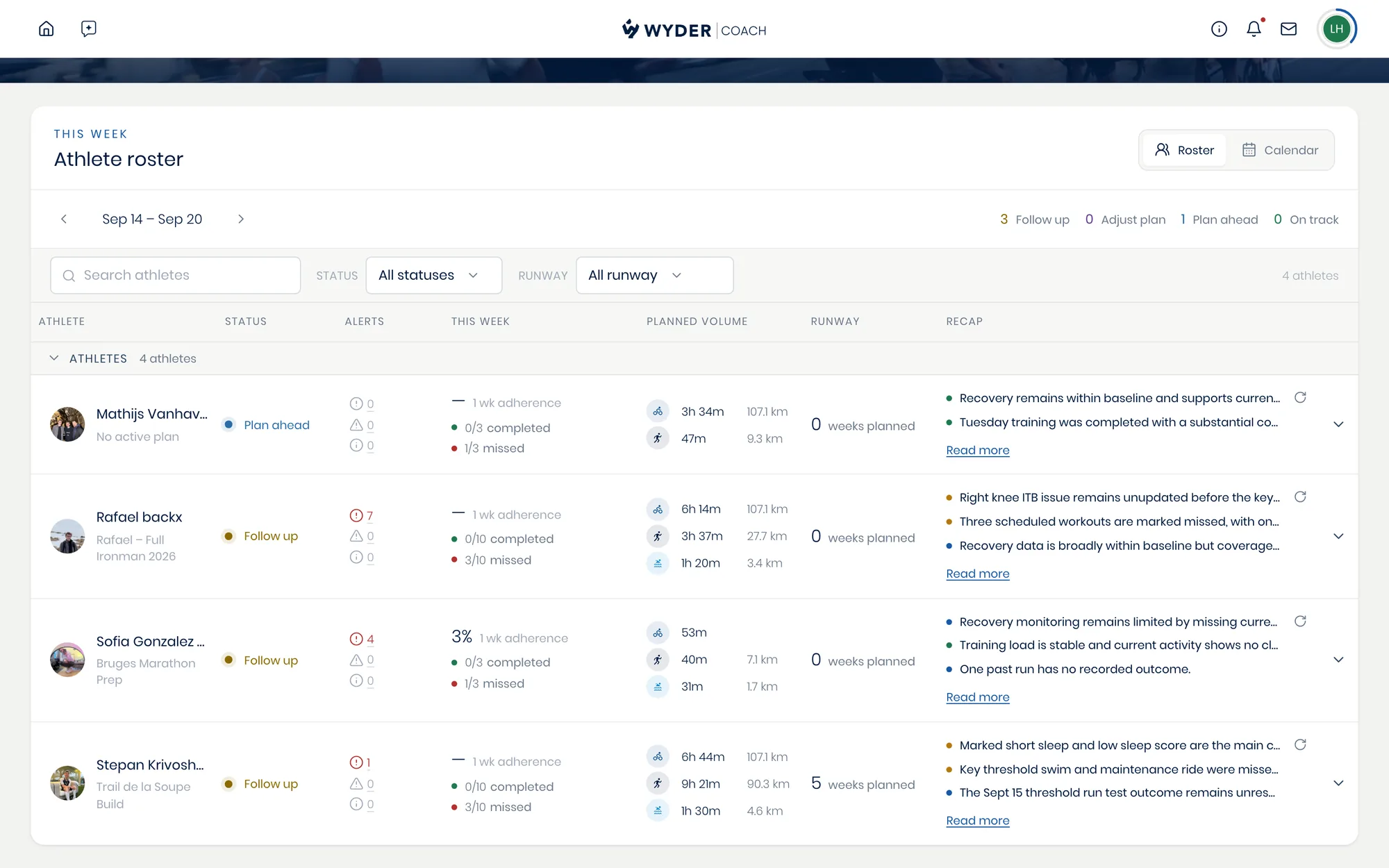
Instead of scanning every row yourself, start with whoever Status flags, then work outward. A roster of five athletes and a roster of fifty read the same way.
Search by name when you know who you're after, or filter by status or by runway to pull up everyone with a week or less of plan left. If you've grouped athletes into teams, the roster table will group athletes by team as well (see Organizing teams).
One athlete's week, without leaving the page
Click the chevron at the end of any row and that athlete's seven days open underneath it. Each session shows its sport, duration and target, colored by whether it was completed, missed, still planned, or still a draft, so you can answer "what has this week actually got in it" for one athlete while you work down the roster.
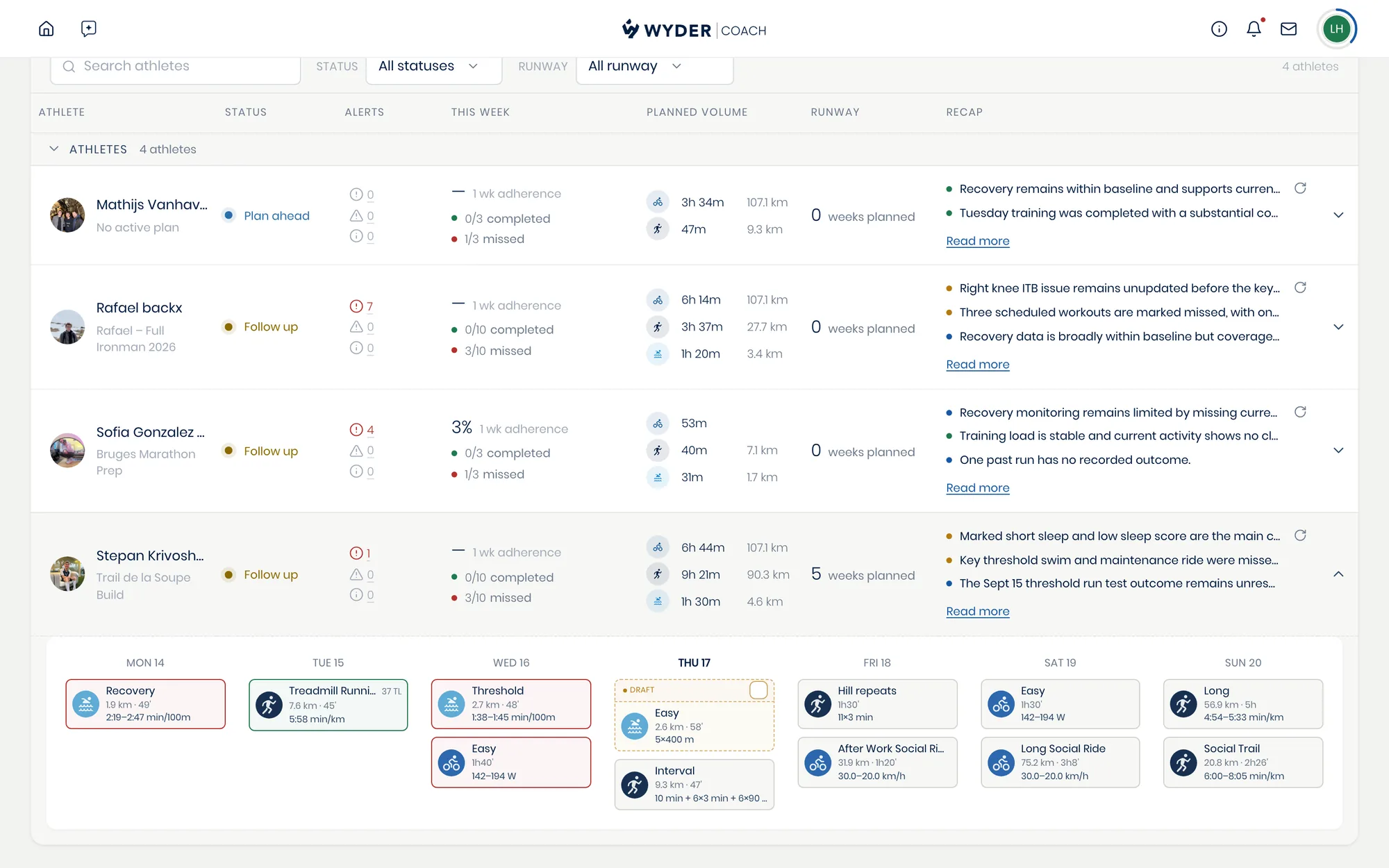
Prefer the day-by-day view?
Switch to Calendar from the toggle at the top of the page for the familiar week-by-week grid: your athletes as rows, the days of the week as columns, and each cell color-coded by whether that workout was completed, completed poorly, missed, or still just planned.
Step forward or back a week to check in on how a past week unfolded or preview what's coming up. Hover over any workout cell to preview its structure, or click through for the full review (see Reviewing a workout).
Click an athlete's name to jump to their full profile (Athlete profiles).
Everything else, one click away
This page also doubles as your home base for the rest of the platform. Your personal AI co-pilot sits in the top left, ready for roster-wide questions.
Your alerts open from the bell icon in the top right of the screen, flagging what needs your attention most. Messaging and your account both live there too, so you're never more than a click away from a conversation with an athlete or your own settings.