
Everything belongs to an organisation
Your athletes, teams, library and plan all live in an organisation. A solo coach has an organisation of one. A club or coaching business has one organisation with several coaches in it.
Find it in your settings (the organisation icon in the top right) under Organisation. Settings shows its profile: name, logo, description and sports, along with what your own role allows you to do.
Inviting coaches
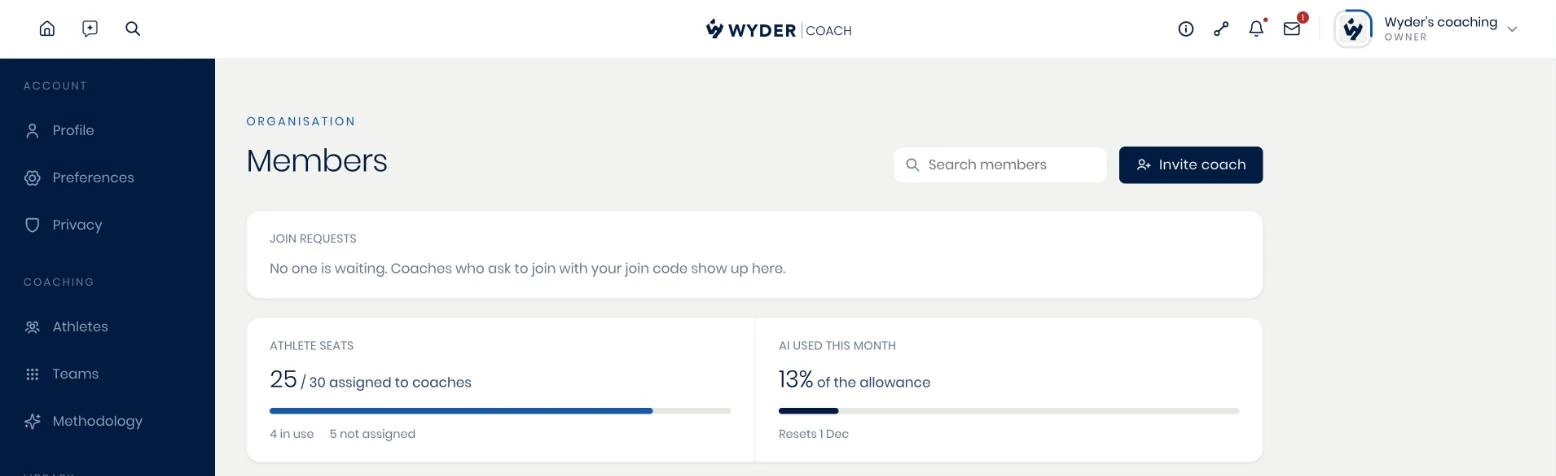
Open Members and click Invite coach. Enter their email address and they receive a link to join. You can set their athlete seats when you invite them or afterwards.
A member holds one of two seat types. A Coach seat is for someone who coaches athletes. A View only seat is for someone who needs to see athletes and manage billing without coaching.
Join codes
If several coaches are joining at once, share your organisation's join code instead. Coaches enter it when they sign up, and each request waits under Join requests on the Members page until you approve or decline it.
The join code sits in the organisation's profile. You can copy it, turn it off, or generate a new one. A new code stops the old one from working at once.
Athlete seats per coach
The Members page shows how many of the organisation's athlete seats are assigned to each coach and how many are in use. Change a coach's seats with the + and − buttons in the table. A coach can only add athletes while they have a free seat, and cannot be given fewer seats than the athletes they already coach.
The same table shows how much of the organisation's AI allowance each coach has used this month.
Roles and permissions
Open a member to change their seat type and their permissions. The owner has every permission. Members without a certain permission still see the related pages, marked View only.
Who sees which athlete
Each athlete has one coach. From Coaching -> Athletes, the menu at the end of an athlete's row lets a member with the right permission:
- Move the athlete to another coach. The new coach takes one of their own athlete seats for it.
- Give other members access. A member you tick sees that athlete the same way as the athletes they coach, without using one of their seats.
The Athletes page switches between Mine and All athletes, and on your roster page athletes are grouped into My athletes and Shared with you.
Sharing your library
Workouts, notes, plan blueprints and zone schemes are yours until you share them with the organisation (see Sharing your library).
More than one organisation
If you coach for two organisations, switch between them from the menu next to the organisation icon in the top right. Invitations from other organisations wait in the same menu.
Leaving, and changing owner
Any member can leave an organisation from its Settings page. Their athletes, seats and AI allowance go to the owner.
The owner can hand the organisation to another member on a coach seat with Transfer ownership. The previous owner stays on as a member and keeps their athletes.