
Adding athletes for the first time
During your onboarding, adding an athlete to your roster can be done in two ways depending on whether the athlete already has a Wyder account or not. If they're already on Wyder, search for them by name and send an invite directly via the app. If they're not on the platform yet, invite them by email instead, so you're never stuck waiting for them to find and join the app on their own. They'll get a link to create an account and land straight in your roster once they accept.
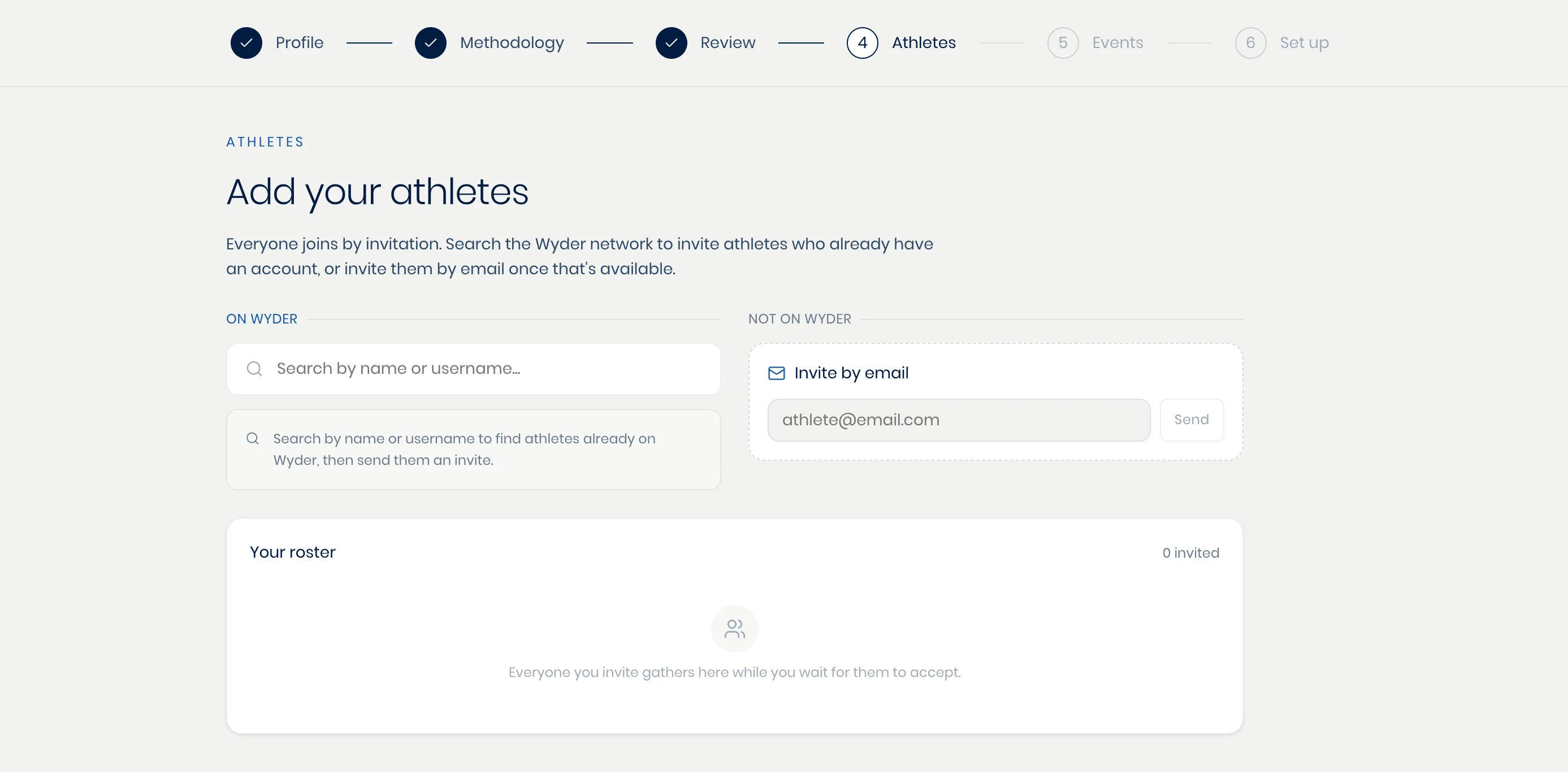
Invites sit as pending until accepted. You can see everyone who hasn't responded yet, and cancel an invite if you sent it by mistake or the athlete's plans changed.
Adding an athlete later
Getting new athletes onto the platform can be done at any time by going to Your account -> Athletes -> Add athlete. You can access Your account by clicking on your profile icon in the top right corner of the screen.
Different contexts for different athletes
Once you've invited an athlete, you can personalize how the AI co-pilot coaches them by adding goals and athlete-specific context. If you're completing onboarding, you'll be prompted to do this immediately after sending the invite. If you're adding an athlete later, you can always do it afterwards from the athlete's profile or by going to Your account -> Methodology -> Athlete-specific methodologies.
This is covered in detail in Getting a new athlete set up.